Skip to content
View in the app

A better way to browse. Learn more.

BariatricPal

A full-screen app on your home screen with push notifications, badges and more.

To install this app on iOS and iPadOS
  1. Tap the Share icon in Safari
  2. Scroll the menu and tap Add to Home Screen.
  3. Tap Add in the top-right corner.
To install this app on Android
  1. Tap the 3-dot menu (⋮) in the top-right corner of the browser.
  2. Tap Add to Home screen or Install app.
  3. Confirm by tapping Install.

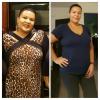
Before and After

  • Popular Post

Surgery date August 17 2016

BW 237

SW 230

CW 191

GW 150-160

Best decision I've ever made.

Sent from my SAMSUNG-SM-G890A using the BariatricPal App

post-307182-14814039831167_thumb.jpg

  • Replies 9
  • Views 1.2k
  • Created
  • Last Reply

Featured Replies

Congrats you look great now can you tell me what the initials mean

Sent from my SM-G900P using the BariatricPal App

Bg=biggest weight (also seen as HW=highest weight)

Sw=surgery weight

Cw=current weight

Gw=goal weight

I had to go back and see where she put initials. After reading these for a while you don't even notice they are abbreviations because your saying the whole words. Lol

Sent from my SAMSUNG-SM-G870A using the BariatricPal App

Archived

This topic is now archived and is closed to further replies.

Account

Navigation

Search

Search

Configure browser push notifications

Chrome (Android)
  1. Tap the lock icon next to the address bar.
  2. Tap Permissions → Notifications.
  3. Adjust your preference.
Chrome (Desktop)
  1. Click the padlock icon in the address bar.
  2. Select Site settings.
  3. Find Notifications and adjust your preference.