




Here are good pic re-size instructions...
- Replies 8
- Views 667
- Created
- Last Reply
Top Posters In This Topic
-
Tricia K. 3 posts
-
mini_me 2 posts
-
the best me 1 post
-
hopefull 1 post




Popular Days
Posted Images

Featured Replies
Join the conversation
You can post as a guest; create a free account to track replies, follow topics, and be part of the largest weight loss surgery community.
Here is my re-sized pic of Hanna
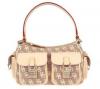
and here is my brand new Dooney and Bourke:dance:
Thanks Donali for the instructions, I hope you don't mind me copy/pasting your words!
:cheer2:"We did it, we did it, we did it, hooray! Lo Hicimos! We did it!"
If you're using windows XP, here is what I do (this probably will work with any Windows program):
Open up the .jpg file by double-clicking on it. My .jpg opens with the default program "Windows Picture and Fax Viewer".
In the bottom righthand corner, there is a picture with a little pen - if you mouse over that, it should say "Closes this program and opens the image for editing (Ctrl+E)"
Click on that little picture, or hold down the control button and then type the letter E.
The image should now display in a window that has "Paint" as a part of the title.
On the file menu, under "Image" click on "Attributes". Now you should see how high and how wide your picture is. You can choose your prefered measurement - I would use inches. If you change the size here, you risk deforming your picture, because this program does not automatically reduce the width to match the reduction in height. But now that you know how big the picture is, you know about how much you want to reduce it.
For example, lets say the width is 10 inches, but you want to make it only 5 inches, and you want to keep the height proportionate with that change.
Cancel out of the attributes window.
On the file menu, under "Image" click on "Stretch/Skew"
Under "Stretch" you see two boxes with 100% in them. Since you want your picture half the size it is now, put 50% in each box (height and width) and click "Okay".
I would now save the picture under a different name, so that you don't permanently change the size of your original. I usually add the letters "sm" for "small" to the original title, so I know it's the same pic, only smaller.