
Alex Brecher
Founder
-
Joined
-
Last visited
Everything posted by Alex Brecher
-
I'm excited to announce our new official LapBandTalk iPhone, iPad and iPod app! Please see this post for further details.....
-
I'm excited to announce our new official LapBandTalk iPhone, iPad and iPod app! Please see this post for further details.....
-
I sent you a private message with your log in name. You can also use your email address instead of your User name. You can view the email address linked to your account here.
-
The Plication is a new procedure, same as the Sleeve was a few years back. Give it a little time
-
Great feature request! We'll try to get it added shortly. We're working on weight and food tracking integration at the moment.
-
No worries! You can be logged in to from anywhere with any device all at the same time.
-
' Which App ? Android or Apple ? Are you sure you're clicking on LOGIN and not Register ?
-
Let me know if this happens again or often please. Just go ahead and quit the app and then launch it again. Here are instructions for quitting the app.
-
I deleted the image.
-
Colin, We are definitely not planning on releasing a Blackberry app at the present moment. We do have a mobile version of the site which should be accessible from the Blackberry. We're hoping the next version of the Blackberry OS will support Android Apps
-
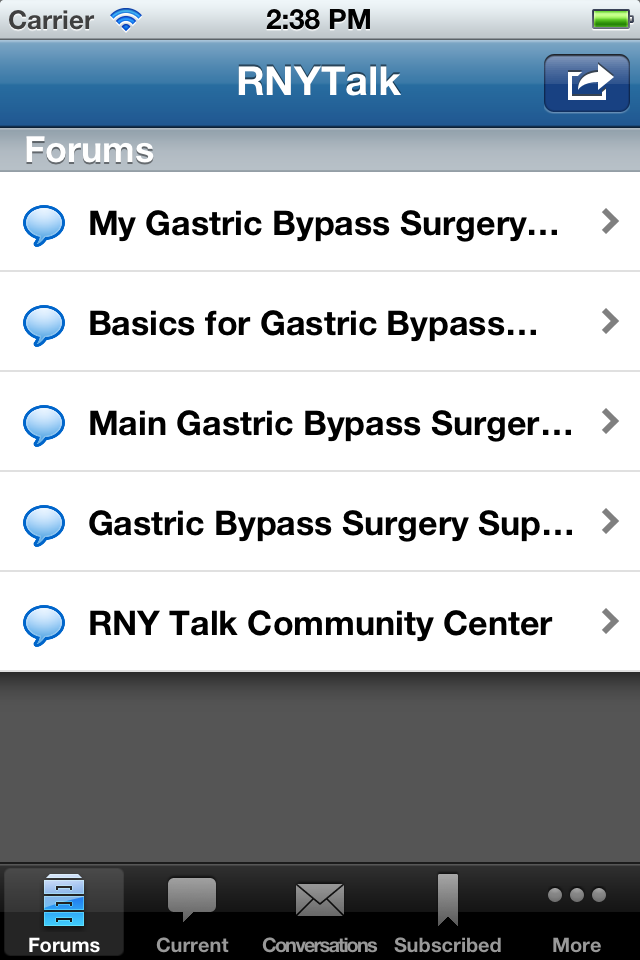
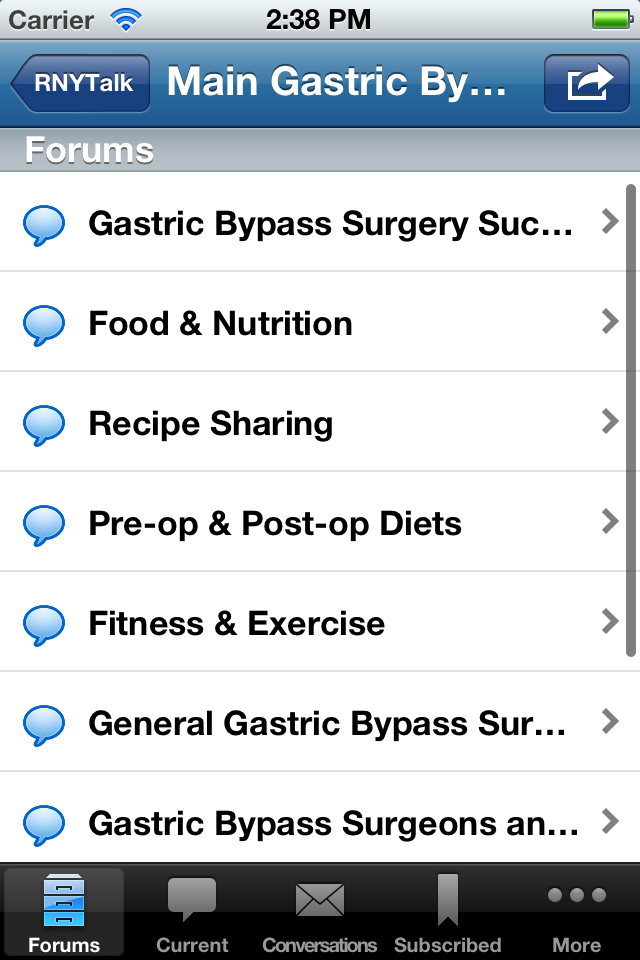
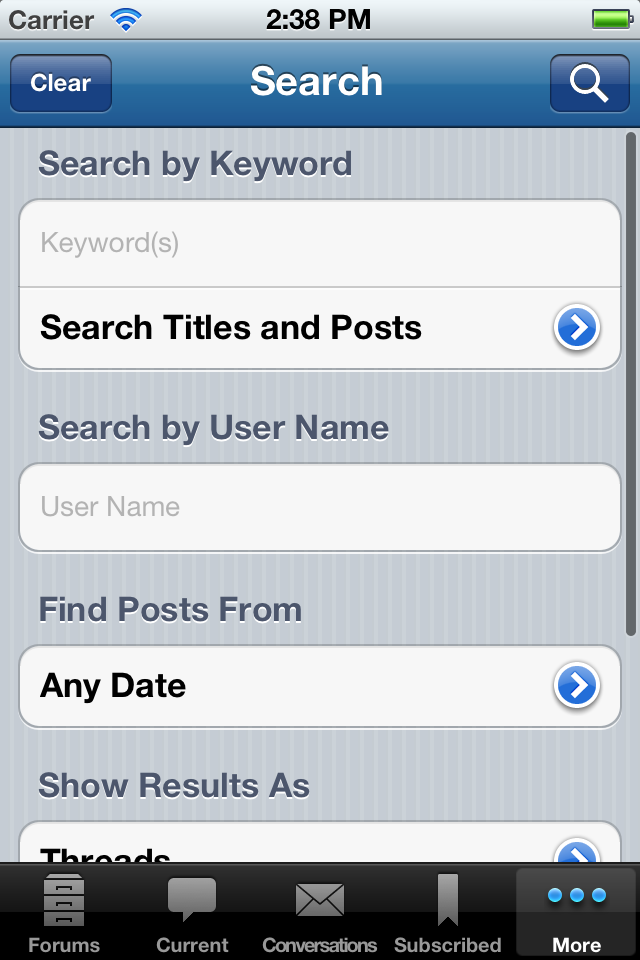
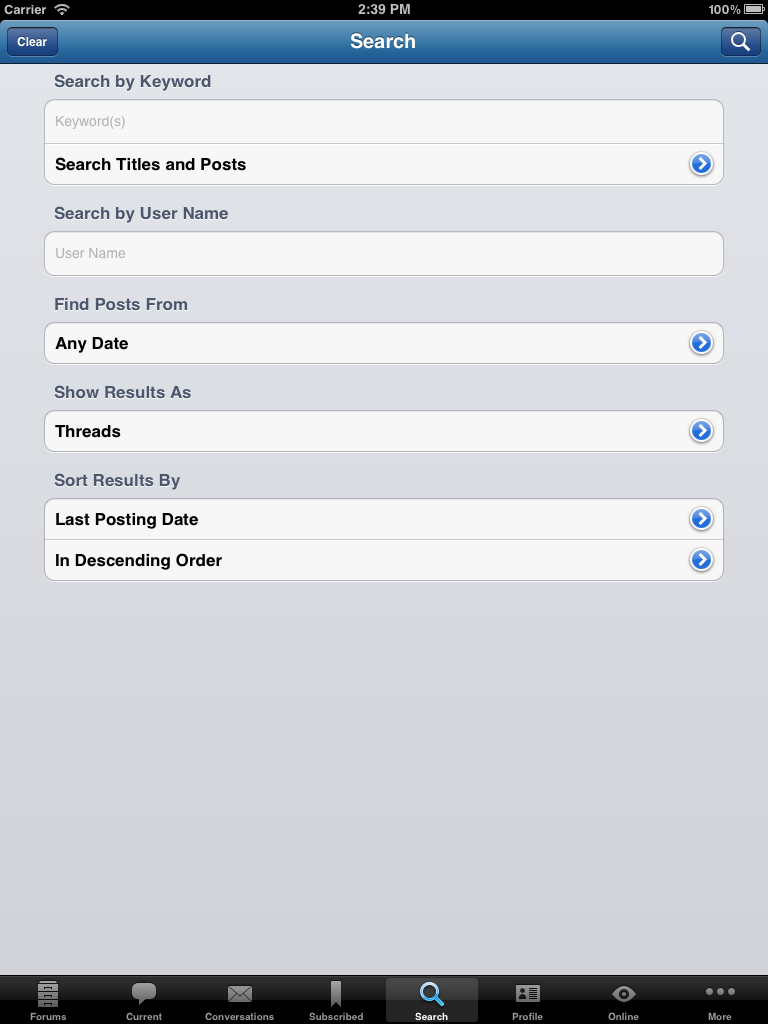
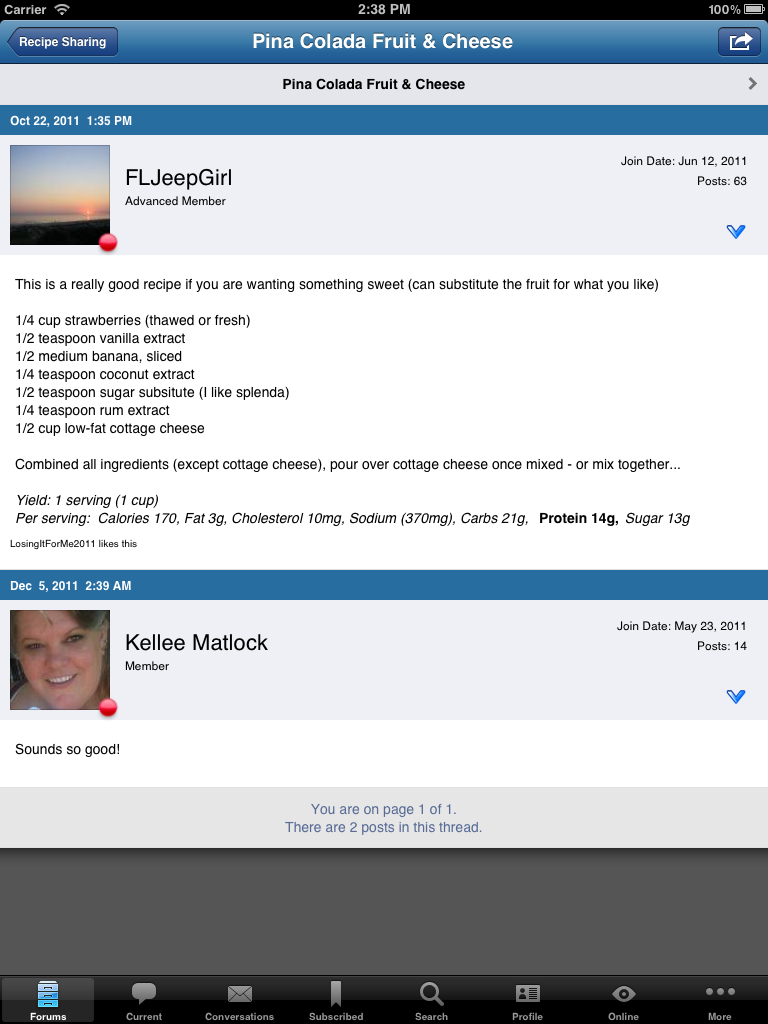
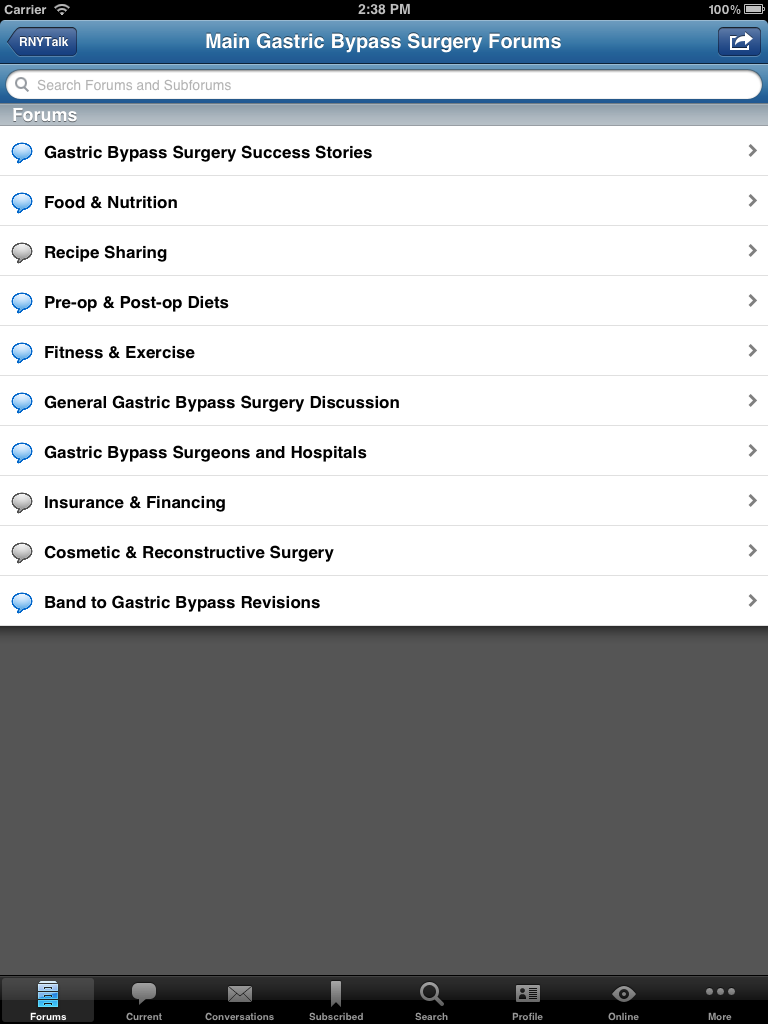
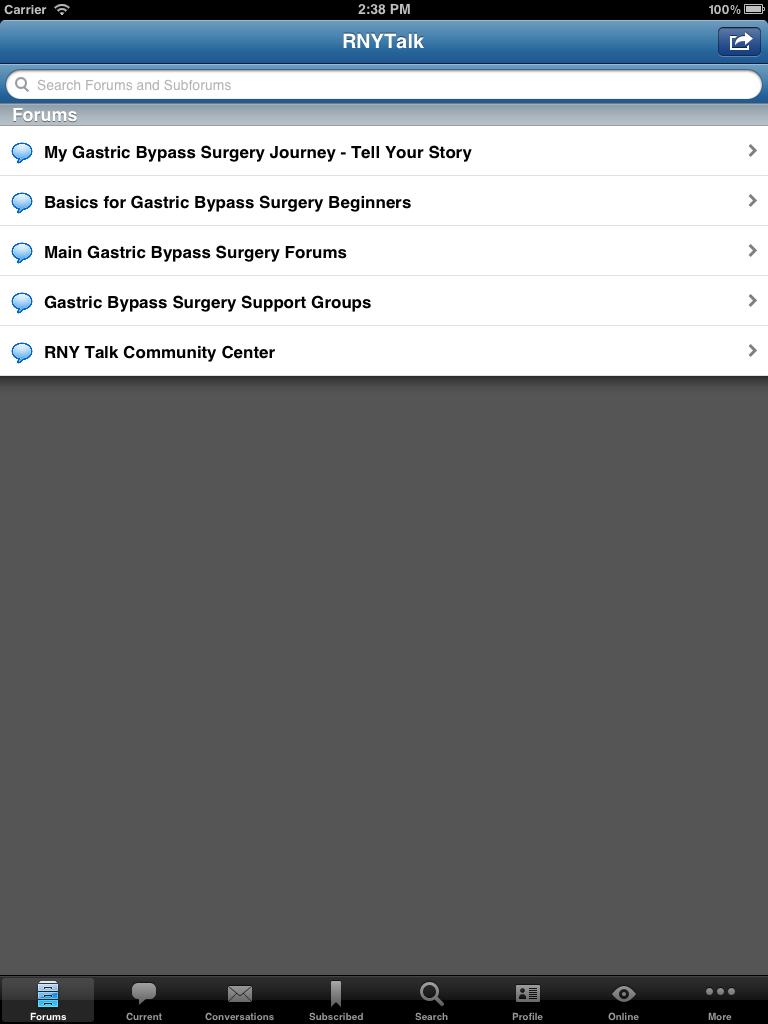
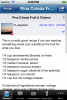
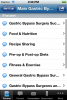
I'm excited to announce our new official RNYTalk iPhone, iPad and iPod app! This app makes it fun and easy to access the site while you're away from your computer. You can also take pictures with your phone or device and attach them directly to a thread. The RNYTalk iPhone, iPad and iPod Forum application features include: Full posting abilities Attach photos directly from your Apple device Private Messaging (with optional push notifications) Subscribe and track your favorite threads and topics (with optional push notifications) Supports both Landscape and Portrait views The app is free and you can download it directly from your phone. Just open up the Apple app store and search for "SleevePlicationTalk" and you'll find the app. Then just click install. You can also go to RNYTalk.com on your phone and it should direct you directly to the app. Once it's installed, you'll have a new icon on your phone that says RNYTalk. Click it and you'll be ready to go. Here are some screen shots: iPhone and iPod touch Screenshots: iPad Screenshots: Get the app and get ready to take RNYTalk with you wherever you go.







-
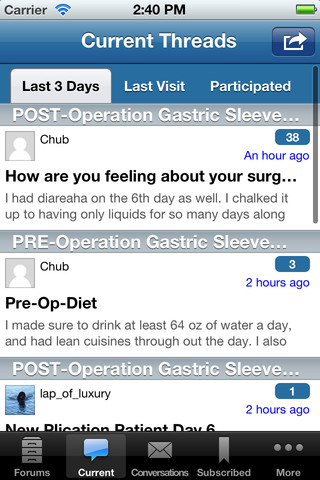
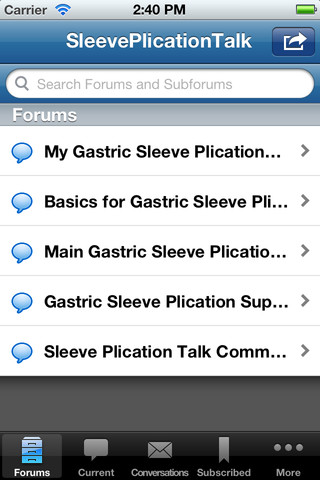
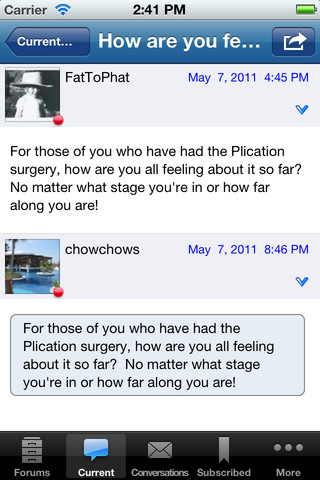
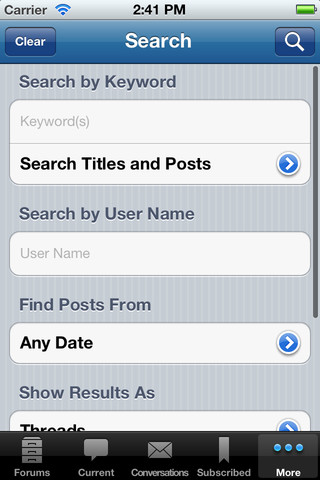
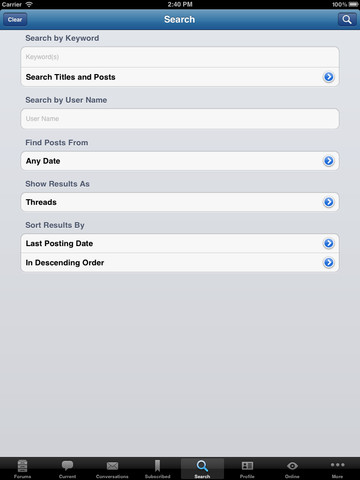
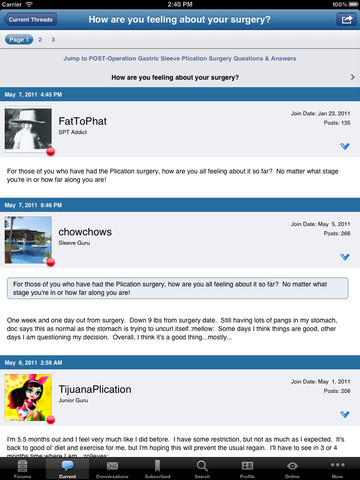
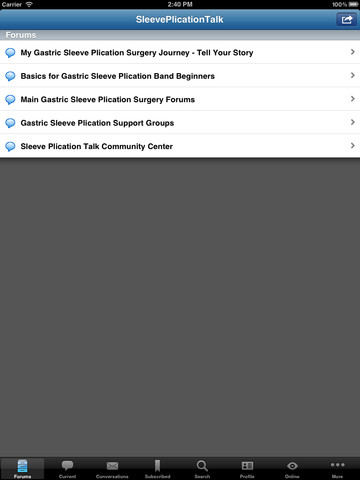
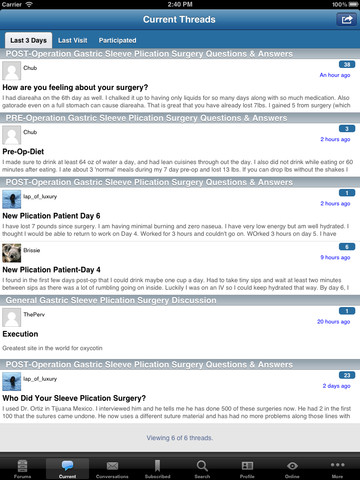
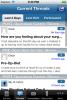
I'm excited to announce our new official SleevePlicationTalk iPhone, iPad and iPod app! This app makes it fun and easy to access the site while you're away from your computer. You can also take pictures with your phone or device and attach them directly to a thread. The SleevePlicationTalk iPhone, iPad and iPod Forum application features include: Full posting abilities Attach photos directly from your Apple device Private Messaging (with optional push notifications) Subscribe and track your favorite threads and topics (with optional push notifications) Supports both Landscape and Portrait views The app is free and you can download it directly from your phone. Just open up the Apple app store and search for "SleevePlicationTalk" and you'll find the app. Then just click install. You can also go to SleevePlicationTalk.com on your phone and it should direct you directly to the app. Once it's installed, you'll have a new icon on your phone that says SleevePlicationTalk. Click it and you'll be ready to go. Here are some screen shots: iPhone and iPod touch Screenshots: iPad Screenshots: Get the app and get ready to take SleevePlicationTalk with you wherever you go.









-
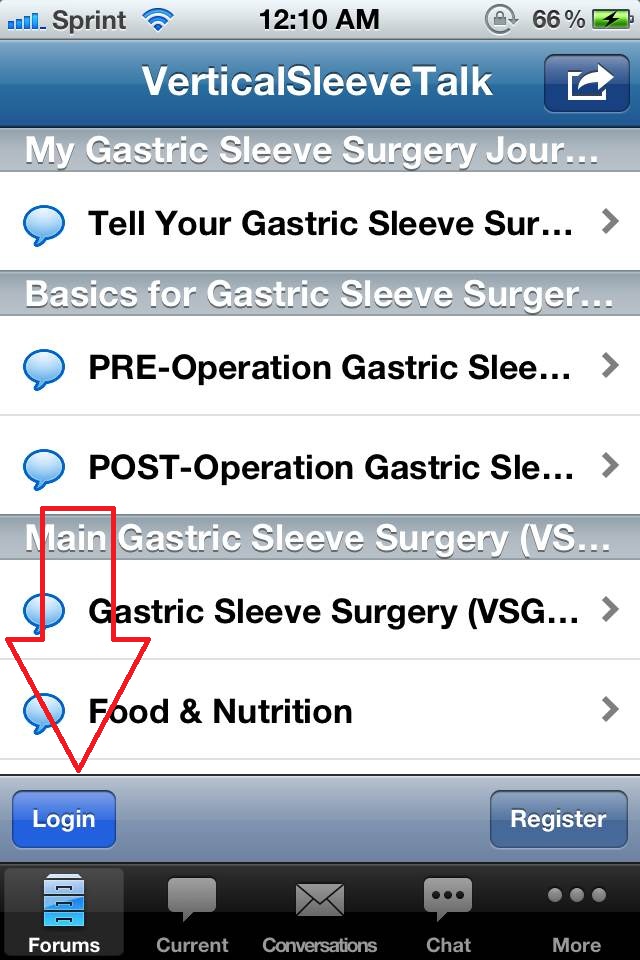
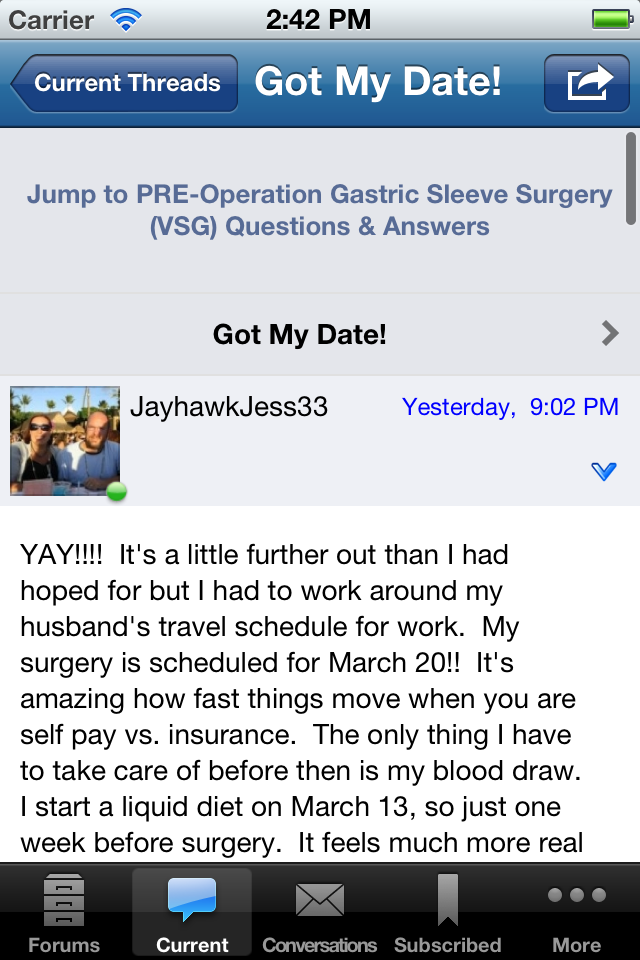
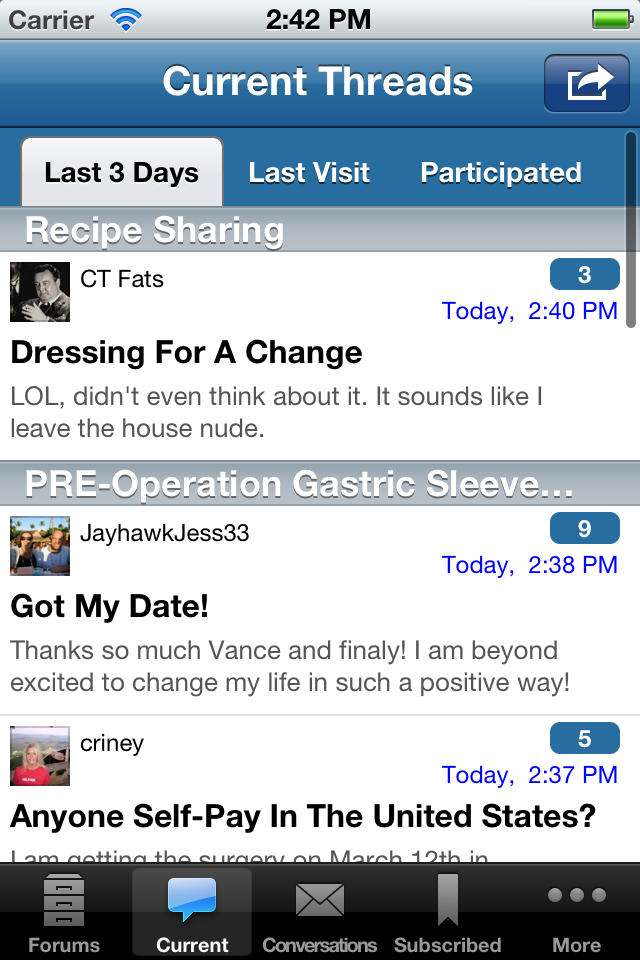
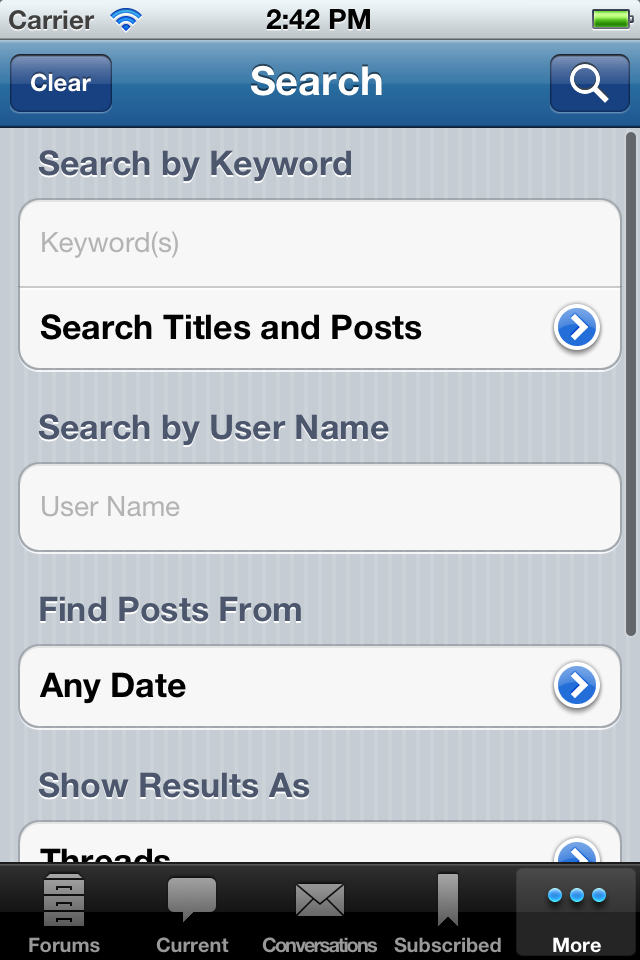
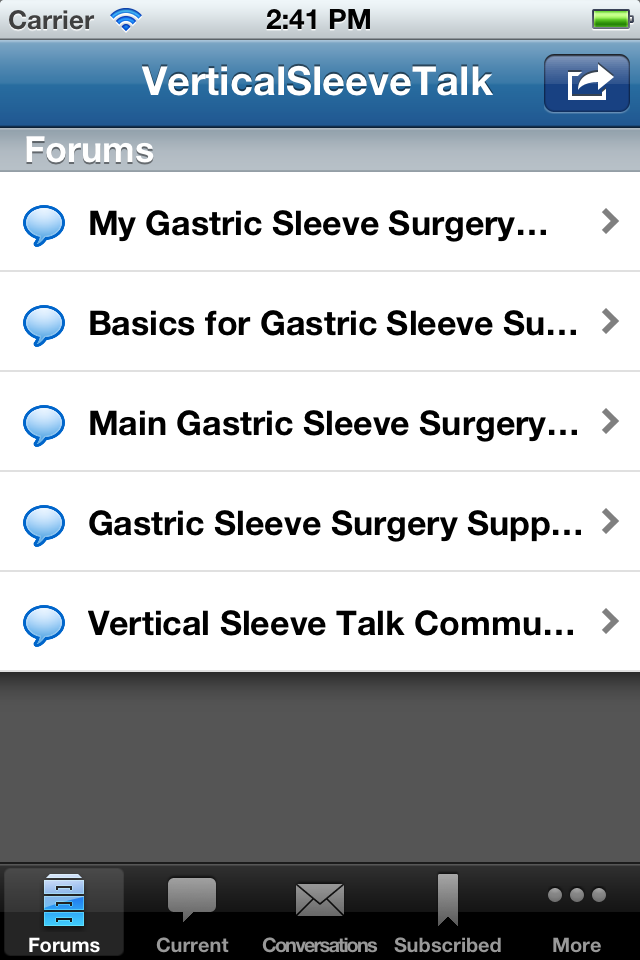
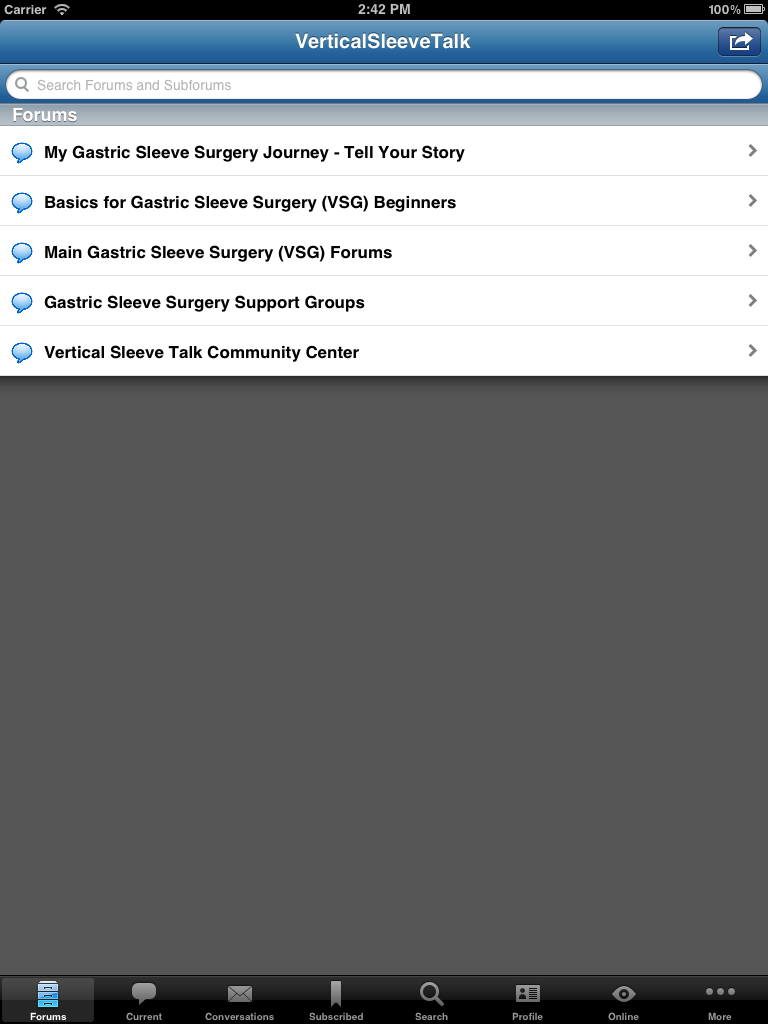
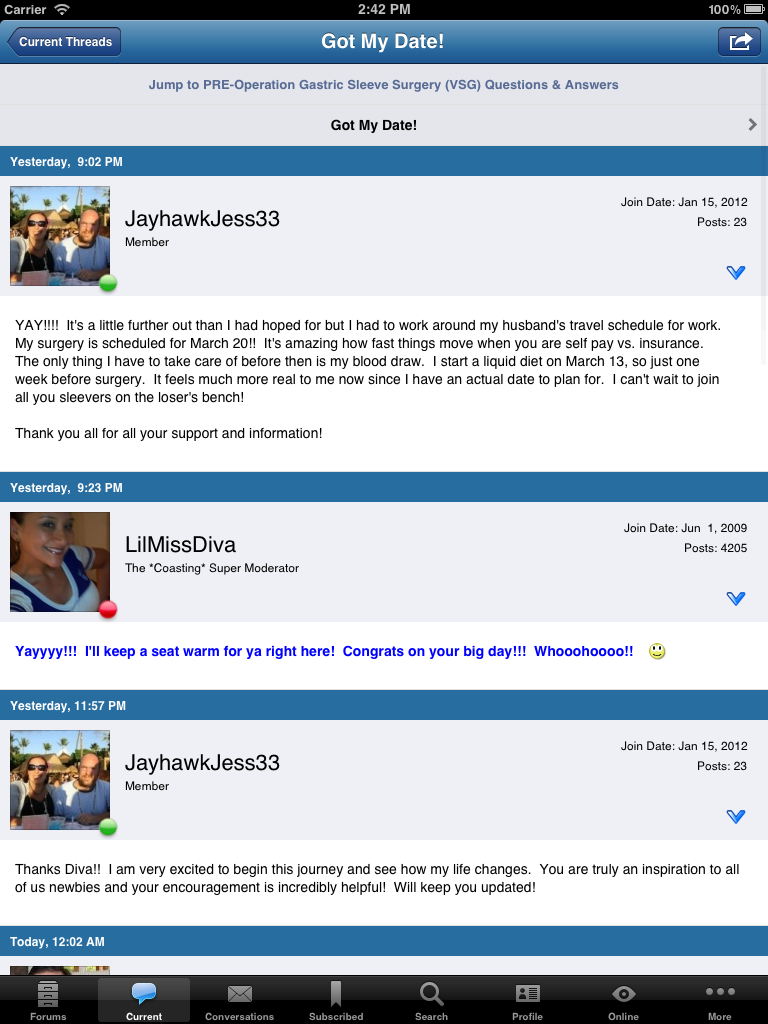
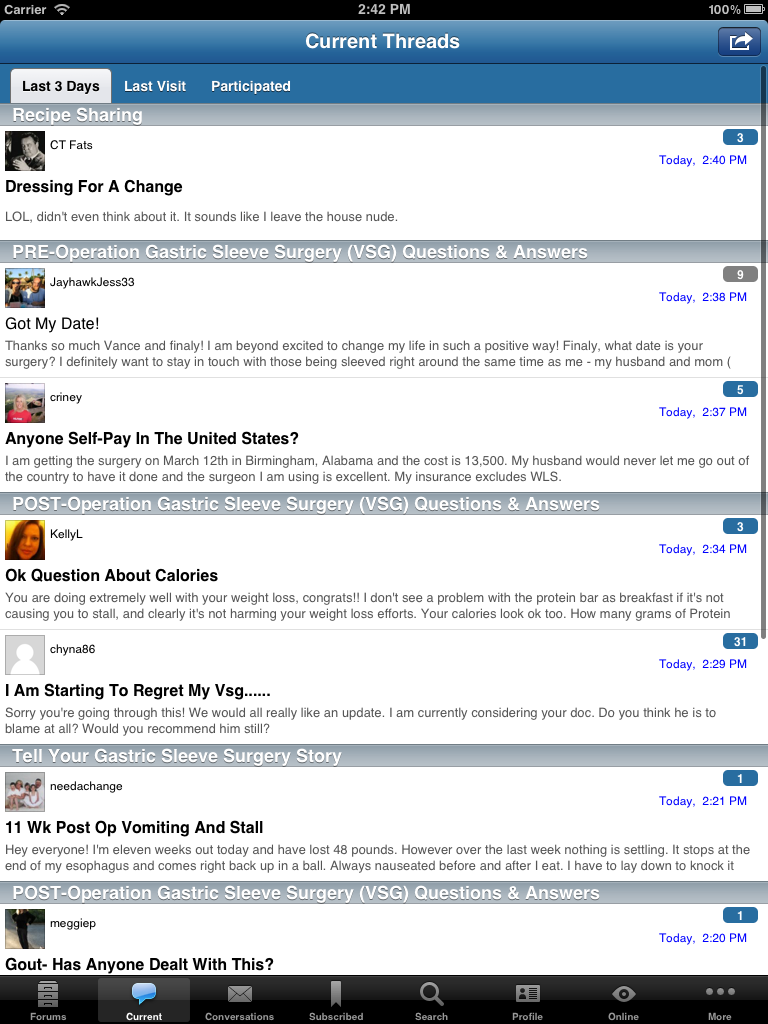
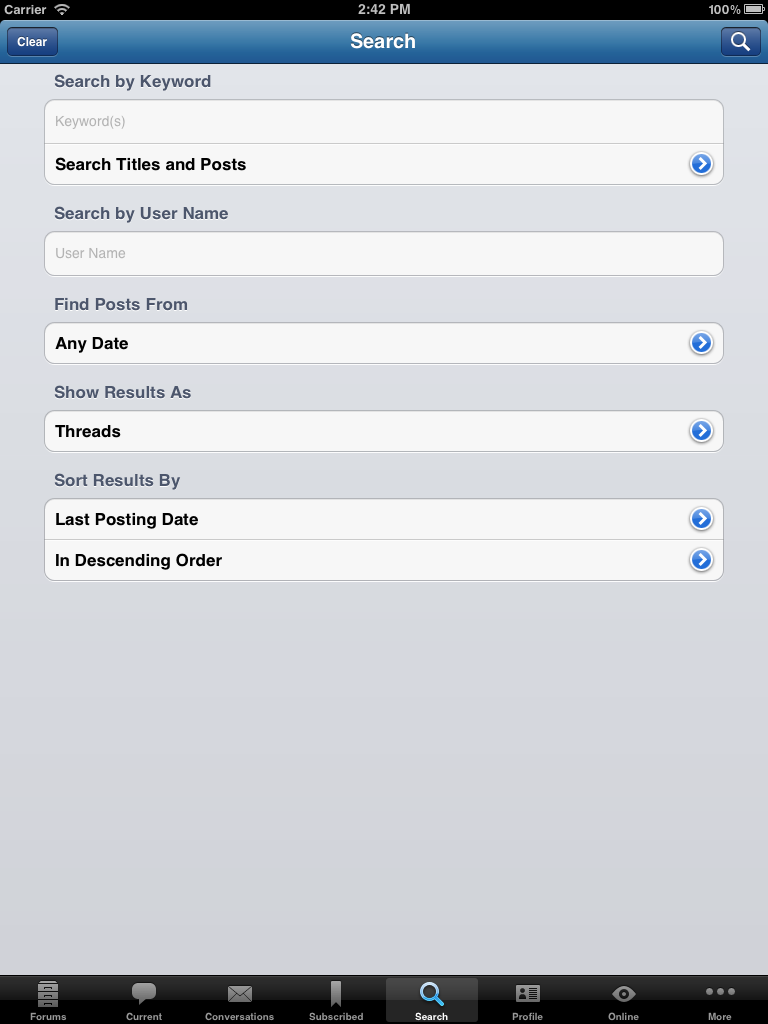
I'm excited to announce our new official VerticalSleeveTalk iPhone, iPad and iPod app! This app makes it fun and easy to access the site while you're away from your computer. You can also take pictures with your phone or device and attach them directly to a thread. The VerticalSleeveTalk iPhone, iPad and iPod Forum application features include: Full posting abilities Attach photos directly from your Apple device Private Messaging (with optional push notifications) Subscribe and track your favorite threads and topics (with optional push notifications) Supports both Landscape and Portrait views The app is free and you can download it directly from your phone. Just open up the Apple app store and search for "VerticalSleeveTalk" and you'll find the app. Then just click install. You can also go to VerticalSleeveTalk.com on your phone and it should direct you directly to the app. Once it's installed, you'll have a new icon on your phone that says VerticalSleeveTalk. Click it and you'll be ready to go. Here are some screen shots: iPhone and iPod touch Screenshots: iPad Screenshots: Get the app and get ready to take VerticalSleeveTalk with you wherever you go.










-
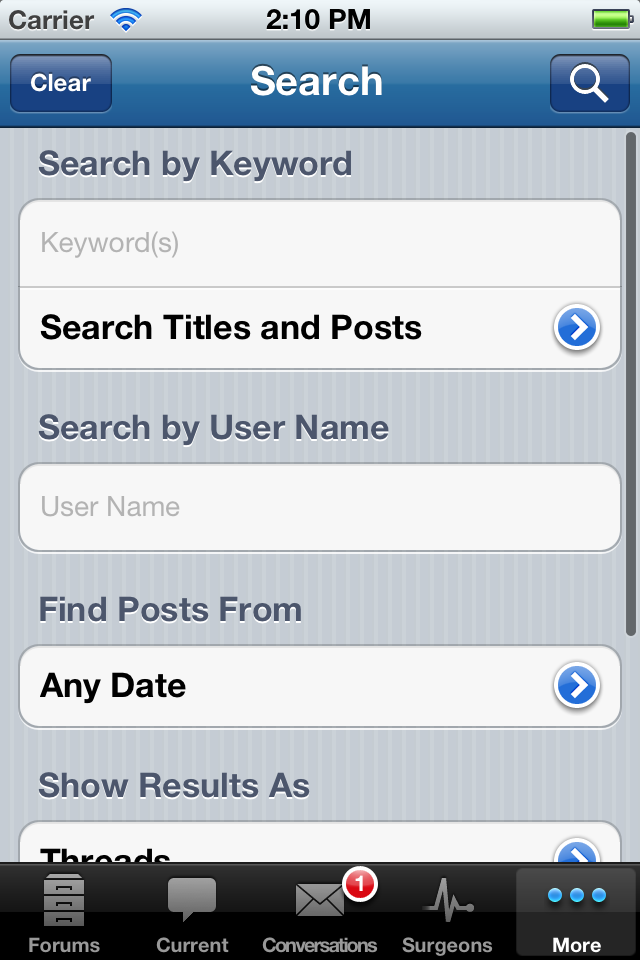
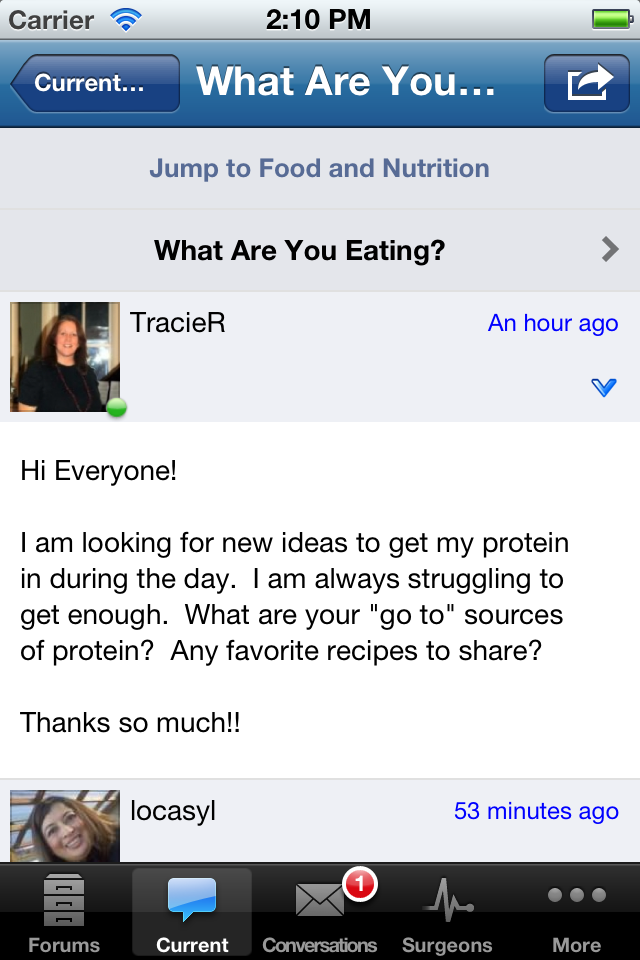
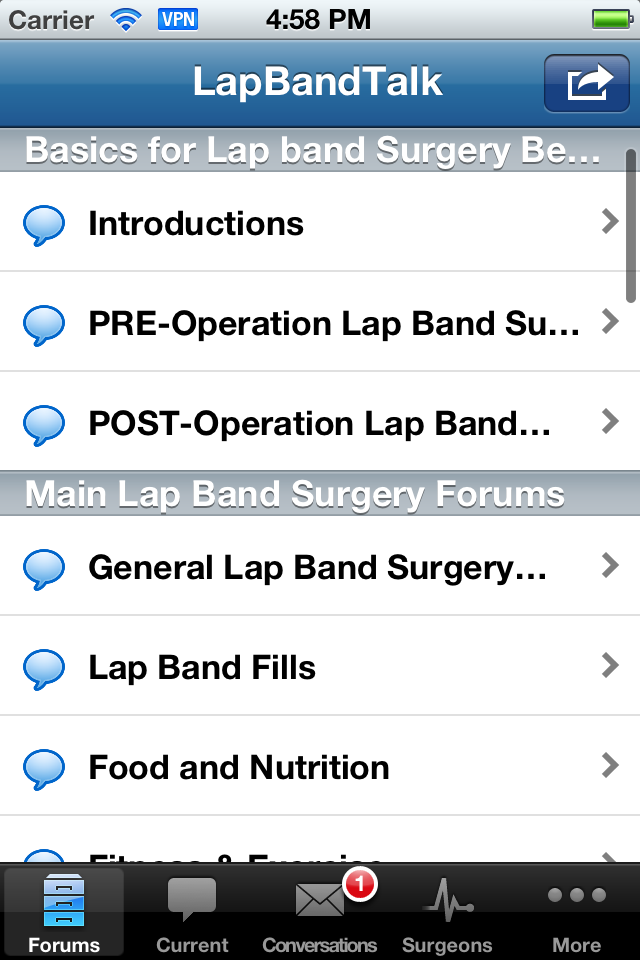
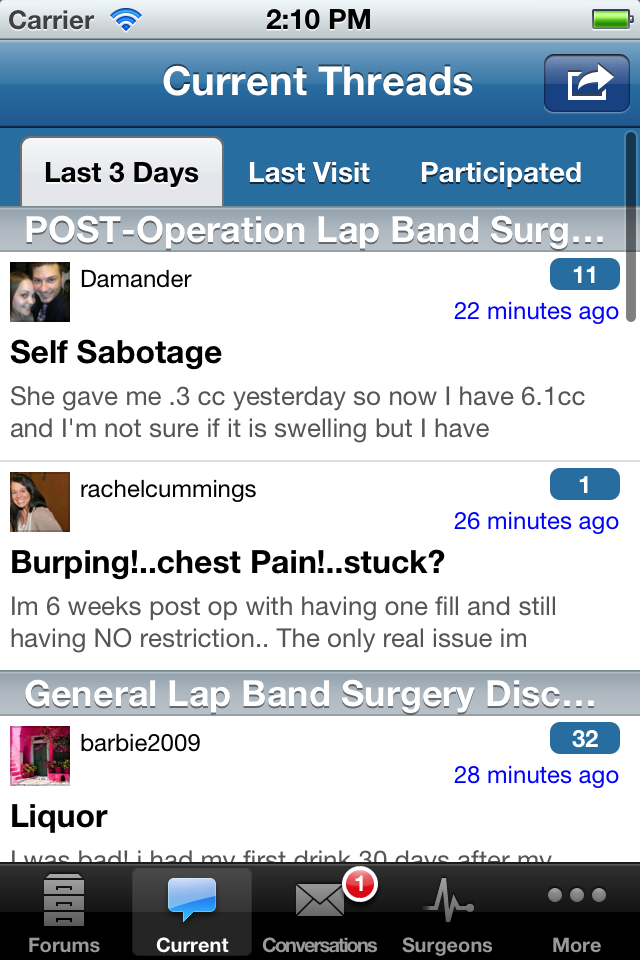
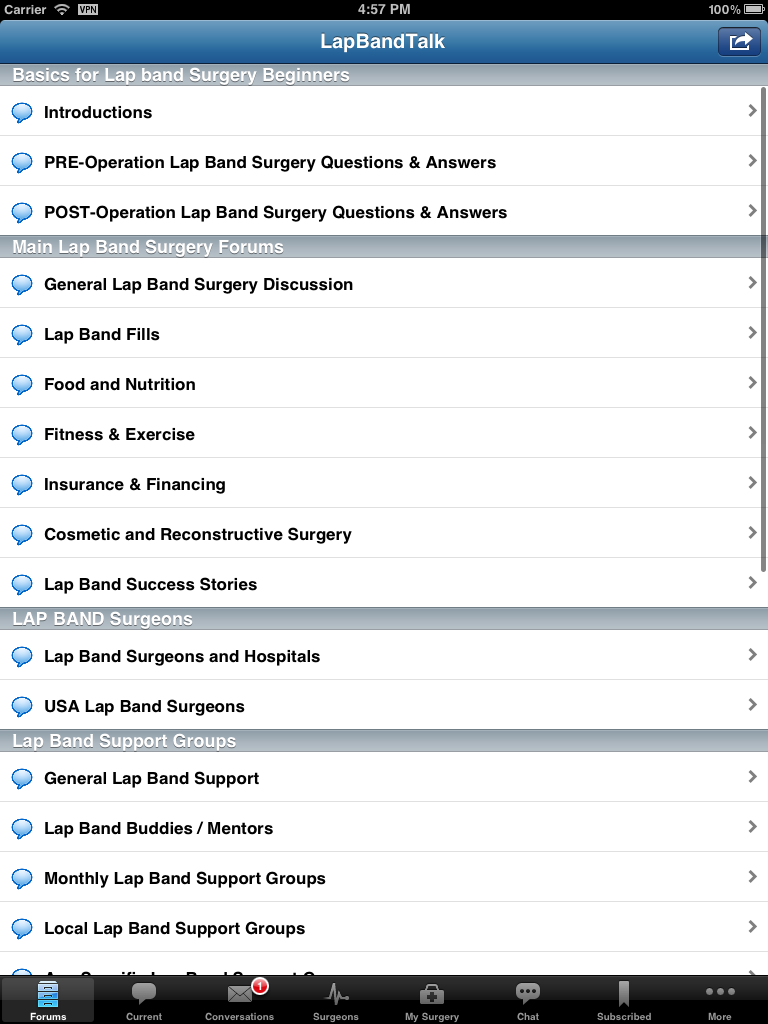
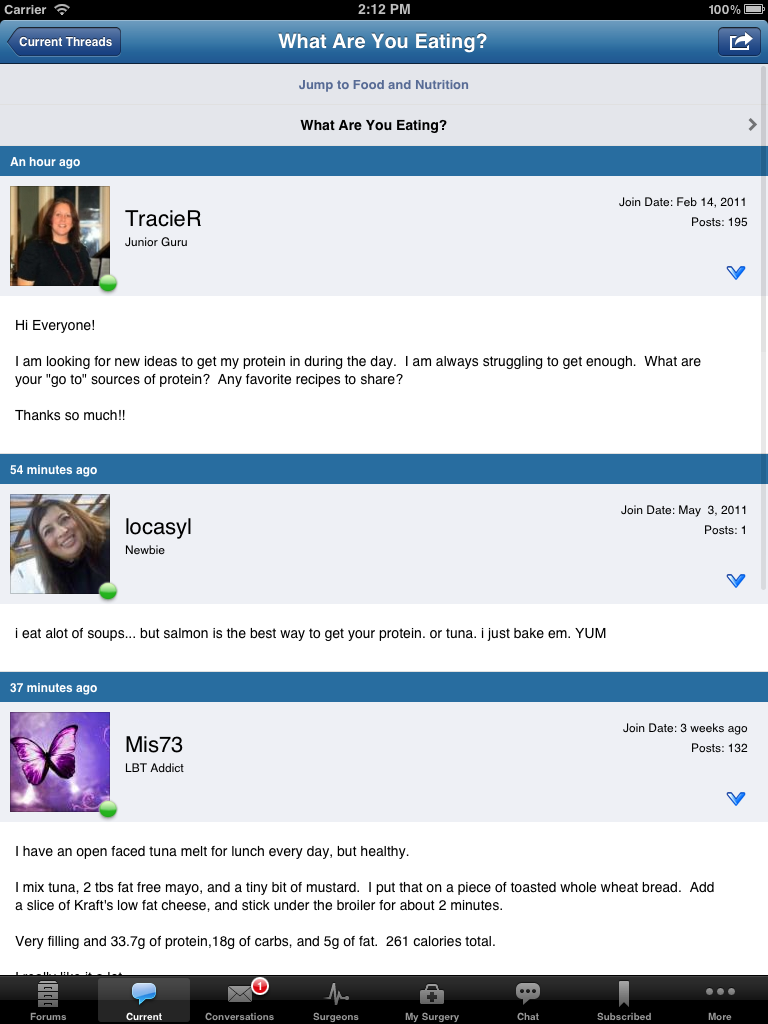
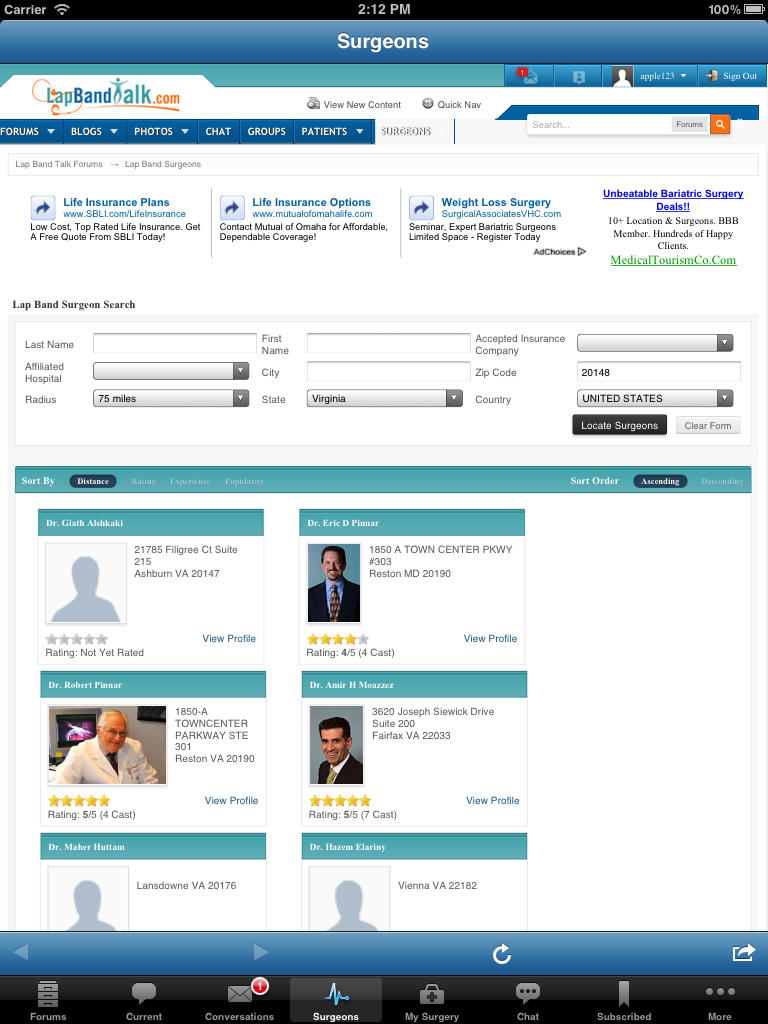
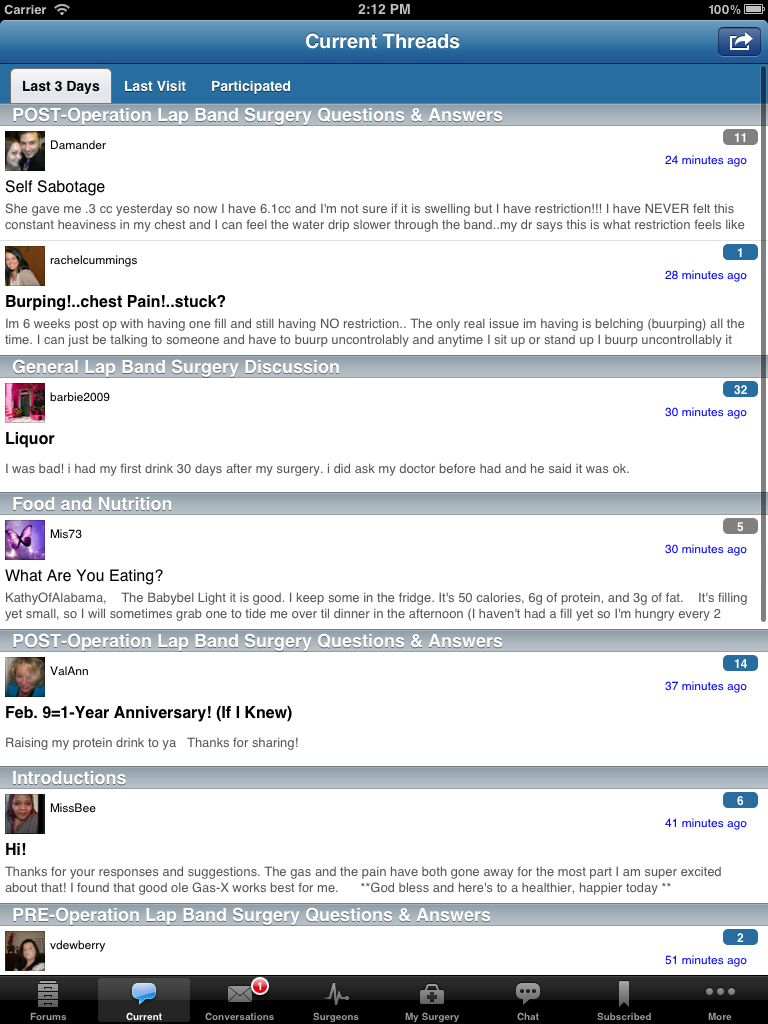
I'm excited to announce our new official LapBandTalk iPhone, iPad and iPod app! This app makes it fun and easy to access the site while you're away from your computer. You can also take pictures with your phone or device and attach them directly to a thread. The LapBandTalk iPhone, iPad and iPod Forum application features include: Full posting abilities Attach photos directly from your Apple device Private Messaging (with optional push notifications) Subscribe and track your favorite threads and topics (with optional push notifications) Supports both Landscape and Portrait views The app is free and you can download it directly from your phone. Just open up the Apple app store and search for "LapBandTalk" and you'll find the app. Then just click install. You can also go to LapBandTalk.com on your phone and it should direct you directly to the app. Once it's installed, you'll have a new icon on your phone that says LapBandTalk. Click it and you'll be ready to go. Here are some screen shots: iPhone and iPod touch Screenshots: iPad Screenshots: Antibiotic beads.pdf Get the app and get ready to take LapBandTalk with you wherever you go.









-
Use this link
-
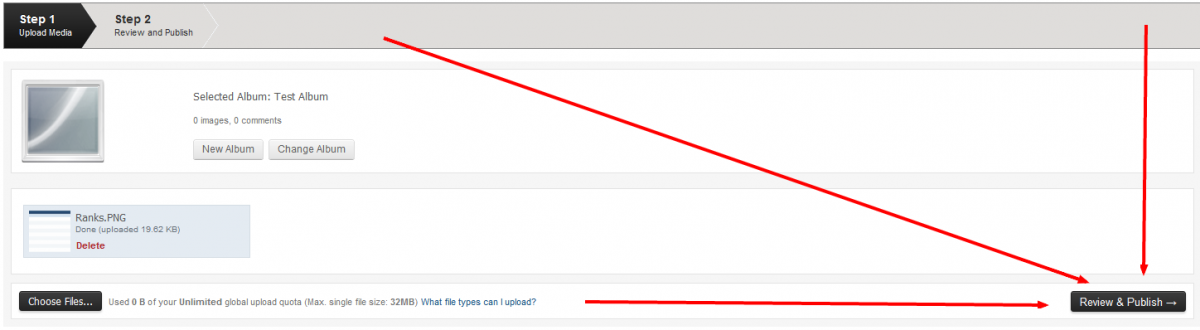
No worries! I wish our system was a bit easier to use. We're making some changes in the very near future which will simplify things. Your issue is that you don't have an album created to upload your pics into. You need to click on the "New Album" button and first create an album to upload your pics to.


-
The above app is no longer available. We just released our own Android app and we're hoping to release our own iOS/Apple app this week. We've already submitted it to Apple, just waiting on their approval process. Please stay tuned.....
-
Here are the steps I took to get there: 1) Selected my album 2) Clicked on Choose files and selected the files to upload 3) After you select the files, you should see them listed right above the Choose Files button 4) All the way to the right of the "Choose Files" button, you'll see another button called "Review & Publish", this is all part of Step 1 I've attached a numbered screenshot which shows you each step:

-
You need to hit the "Review & Publish" Button at the bottom right after you select your images. See attached screenshot please.

-
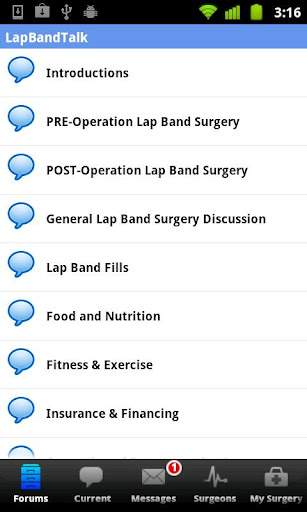
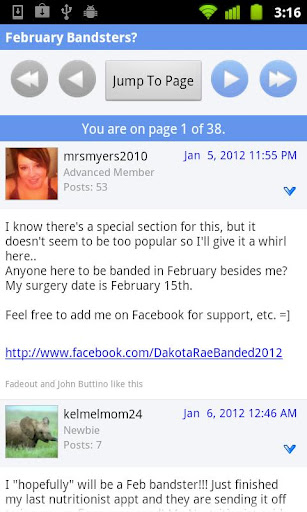
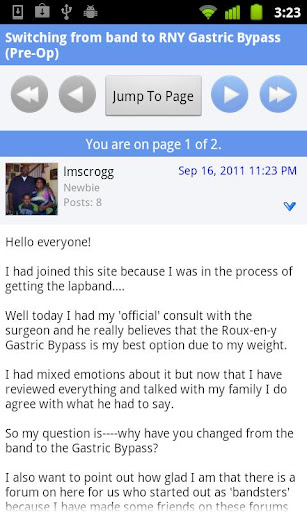
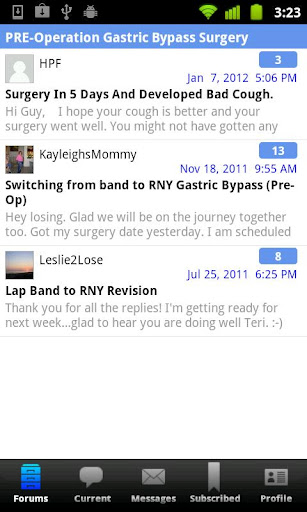
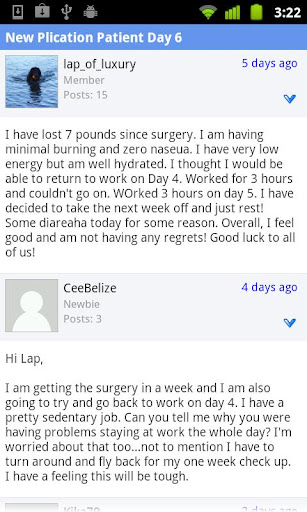
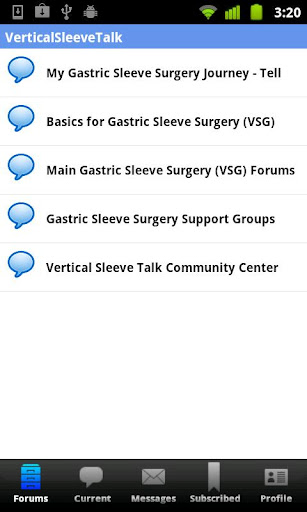
I'm excited to announce our new official LapBandTalk Android app! This app makes it fun and easy to access the site while you're away from your computer. You can also take pictures with your phone and attach them directly to a thread. The LapBandTalk Android Forum application features include: Full posting abilities Attach photos directly from your Android device Private Messaging (with optional push notifications) Subscribe and track your favorite threads and topics (with optional push notifications) Supports both Landscape and Portrait views The app is free and you can download it directly from your phone. Just open up the Android app store and search for "LapBandTalk" and you'll find the app. Then just click install. You can also go to LapBandTalk.com on your phone and it should direct you directly to the app. Once it's installed, you'll have a new icon on your phone that says LapBandTalk. Click it and you'll be ready to go. Here are some screen shots: Get the app and get ready to take LapBandTalk with you wherever you go.




-
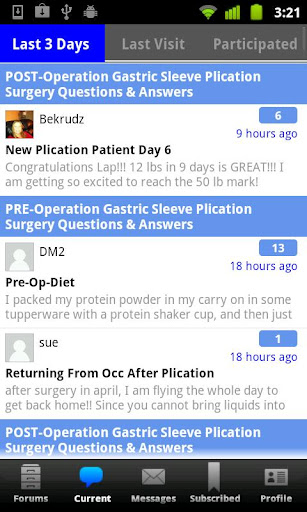
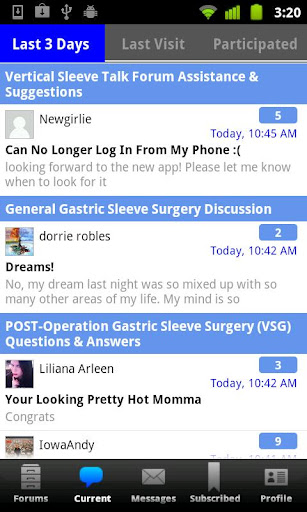
You should see an button right after the "Forum" button named "Current" Click on that button and you should be able to view Unread posts from across all forums.
-
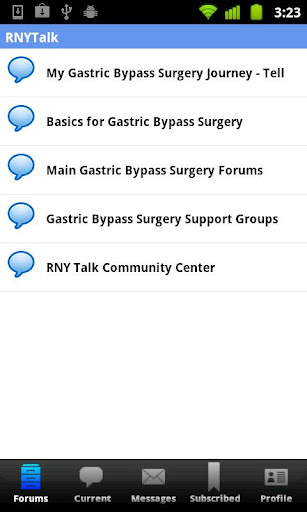
I'm excited to announce our new official RNYTalk Android app! This app makes it fun and easy to access the site while you're away from your computer. You can also take pictures with your phone and attach them directly to a thread. The RNYTalk Android Forum application features include: Full posting abilities Attach photos directly from your Android device Private Messaging (with optional push notifications) Subscribe and track your favorite threads and topics (with optional push notifications) Supports both Landscape and Portrait views The app is free and you can download it directly from your phone. Just open up the Android app store and search for "RNYTalk" and you'll find the app. Then just click install. You can also go to RNYTalk.com on your phone and it should direct you directly to the app. Once it's installed, you'll have a new icon on your phone that says RNYTalk. Click it and you'll be ready to go. Here are some screen shots: Get the app and get ready to take RNYTalk with you wherever you go.




-
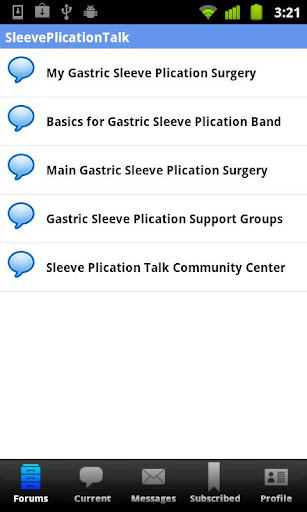
I'm excited to announce our new official Sleeveplicationtalk Android app! This app makes it fun and easy to access the site while you're away from your computer. You can also take pictures with your phone and attach them directly to a thread. The Sleeveplicationtalk Android Forum application features include: Full posting abilities Attach photos directly from your Android device Private Messaging (with optional push notifications) Subscribe and track your favorite threads and topics (with optional push notifications) Supports both Landscape and Portrait views The app is free and you can download it directly from your phone. Just open up the Android app store and search for "Sleeveplicationtalk" and you'll find the app. Then just click install. You can also go to Sleeveplicationtalk.com on your phone and it should direct you directly to the app. Once it's installed, you'll have a new icon on your phone that says Sleeveplicationtalk. Click it and you'll be ready to go. Here are some screen shots: Get the app and get ready to take Sleeveplicationtalk with you wherever you go.




-
I'm excited to announce our new official VerticalSleeveTalk Android app! This app makes it fun and easy to access the site while you're away from your computer. You can also take pictures with your phone and attach them directly to a thread. The VerticalSleeveTalk Android Forum application features include: Full posting abilities Attach photos directly from your Android device Private Messaging (with optional push notifications) Subscribe and track your favorite threads and topics (with optional push notifications) Supports both Landscape and Portrait views The app is free and you can download it directly from your phone. Just open up the Android app store and search for "VerticalSleeveTalk" and you'll find the app. Then just click install. You can also go to VerticalSleeveTalk.com on your phone and it should direct you directly to the app. Once it's installed, you'll have a new icon on your phone that says VerticalSleeveTalk. Click it and you'll be ready to go. Here are some screen shots: Get the app and get ready to take VerticalSleeveTalk with you wherever you go.




-
Adding your Images Clicking an upload link or button will take you to the media upload page. This is a two step process: 1) The first step is to select or create an album to upload the images into. Once the album has been set, you can upload images right away when the upload form reveals itself. 2) When you have uploaded the images you wish to add to the album, you click the 'Review & Publish' button which will allow you to rotate the image or edit the image's details.